
如何在 Facebook (脸书) 启用双重验证 (2FA)
如何在 Facebook (臉書) 啟用雙重驗證 (2FA)
How to Enable 2FA on Facebook
按照以下几个步骤为您的 Facebook (脸书) 账号绑定动态令牌
按照以下幾個步驟為您的 Facebook (臉書) 帳號綁定動態令牌
Follow these steps to link dynamic verification codes to your account
登录 Facebook,进入“设置与隐私” -> “设置” -> “账号安全中心” -> “密码和安全”。
登入 Facebook,進入「設定與隱私」 -> 「設定」 -> 「帳號安全中心」 -> 「密碼和安全」。
Log in to Facebook, go to 'Settings & Privacy' -> 'Settings' -> 'Accounts Center' -> 'Password and security'.
点击“双重验证”(Two-factor authentication),并选择您的账户。
點擊「雙重驗證」(Two-factor authentication),並選擇您的帳戶。
Click on 'Two-factor authentication' and select your account.
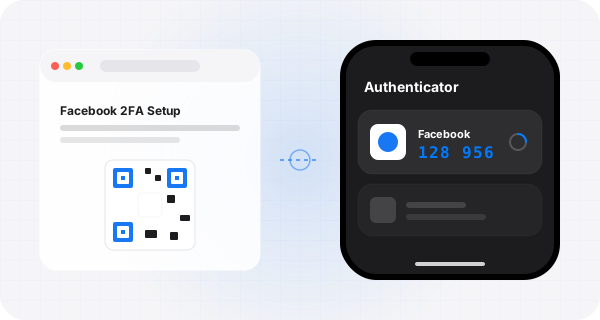
选择“身份验证器应用”(Authentication app) 并点击下一步,网页将显示配置二维码。
選擇「身份驗證器應用程式」(Authentication app) 並點擊下一步,網頁將顯示配置二維碼。
Choose 'Authentication app' and click Next to show the setup QR code.
打开 Authenticator App 扫描该二维码,并输入 App 中生成的当前验证码进行验证绑定。
打開 Authenticator App 掃描該二維碼,並輸入 App 中生成的當前驗證碼進行驗證綁定。
Open Authenticator to scan the QR code, and enter the current verification code to link.

使用 Authenticator 保护您的账号
使用 Authenticator 保護您的帳號
Protect Your Accounts with Authenticator
支持 iCloud 自动同步、Apple Watch 随时查看,支持极其简洁安全的备份导入。
支援 iCloud 自動同步、Apple Watch 隨時查看,支援極其簡潔安全的備份匯入。
Supports iCloud sync, Apple Watch display, and super easy text backups.