
How to Enable Two-Factor Authentication (2FA) on Binance
Follow these steps to set up two-factor verification for your Binance account.
Download and install the Authenticator App from your device's App Store.


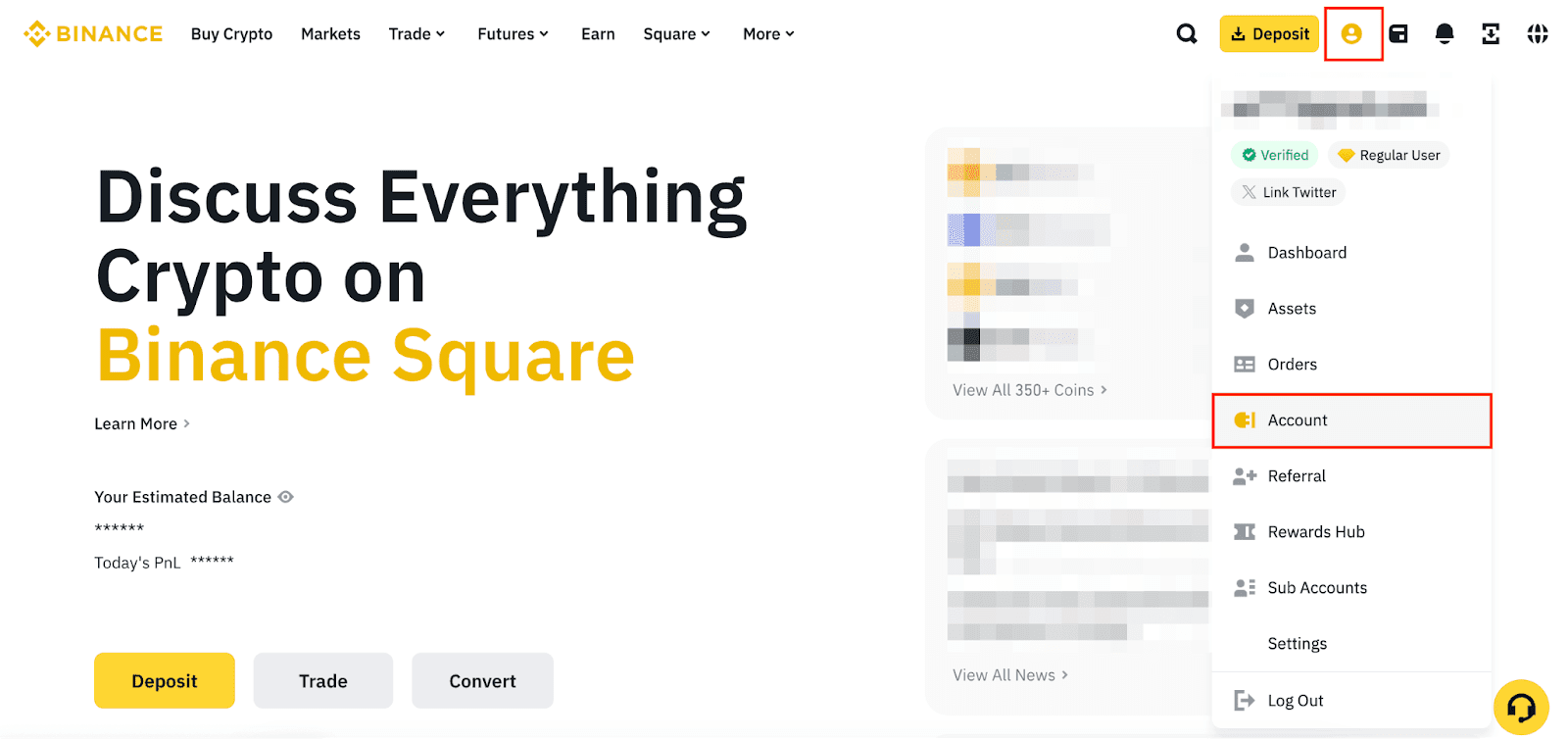
Log into your Binance account and mouse over the [Profile] icon. Click [Account].
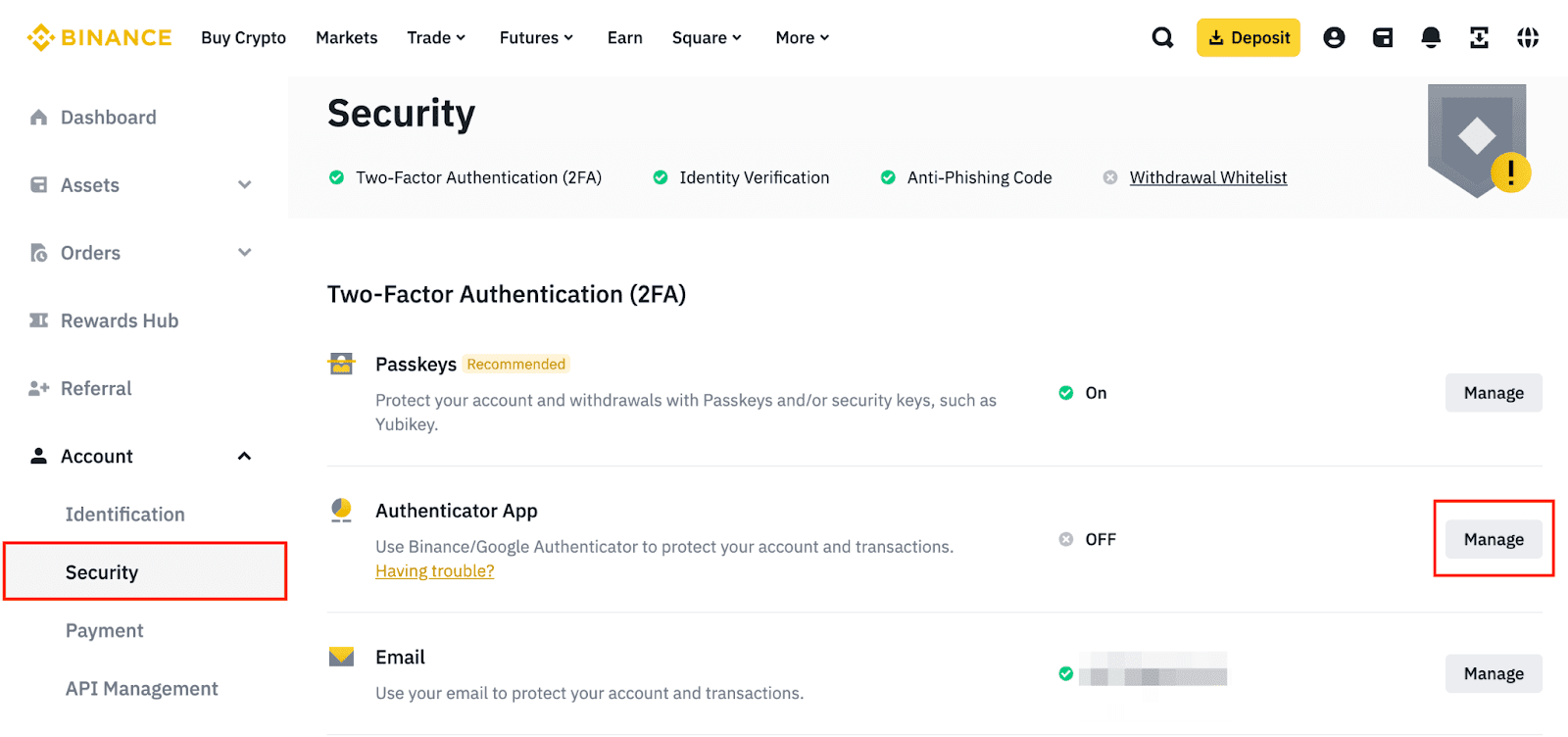
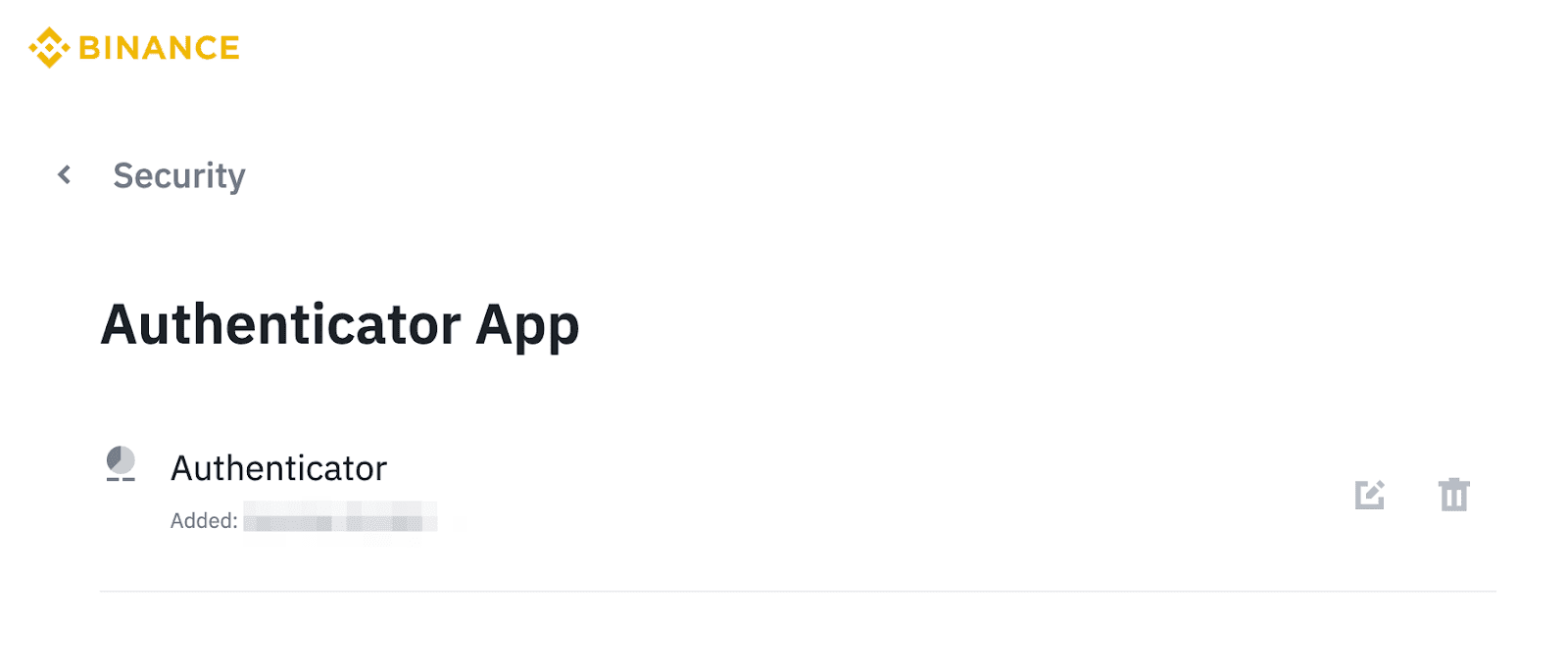
Go to [Security]. Click [Manage] next to [Authenticator App].
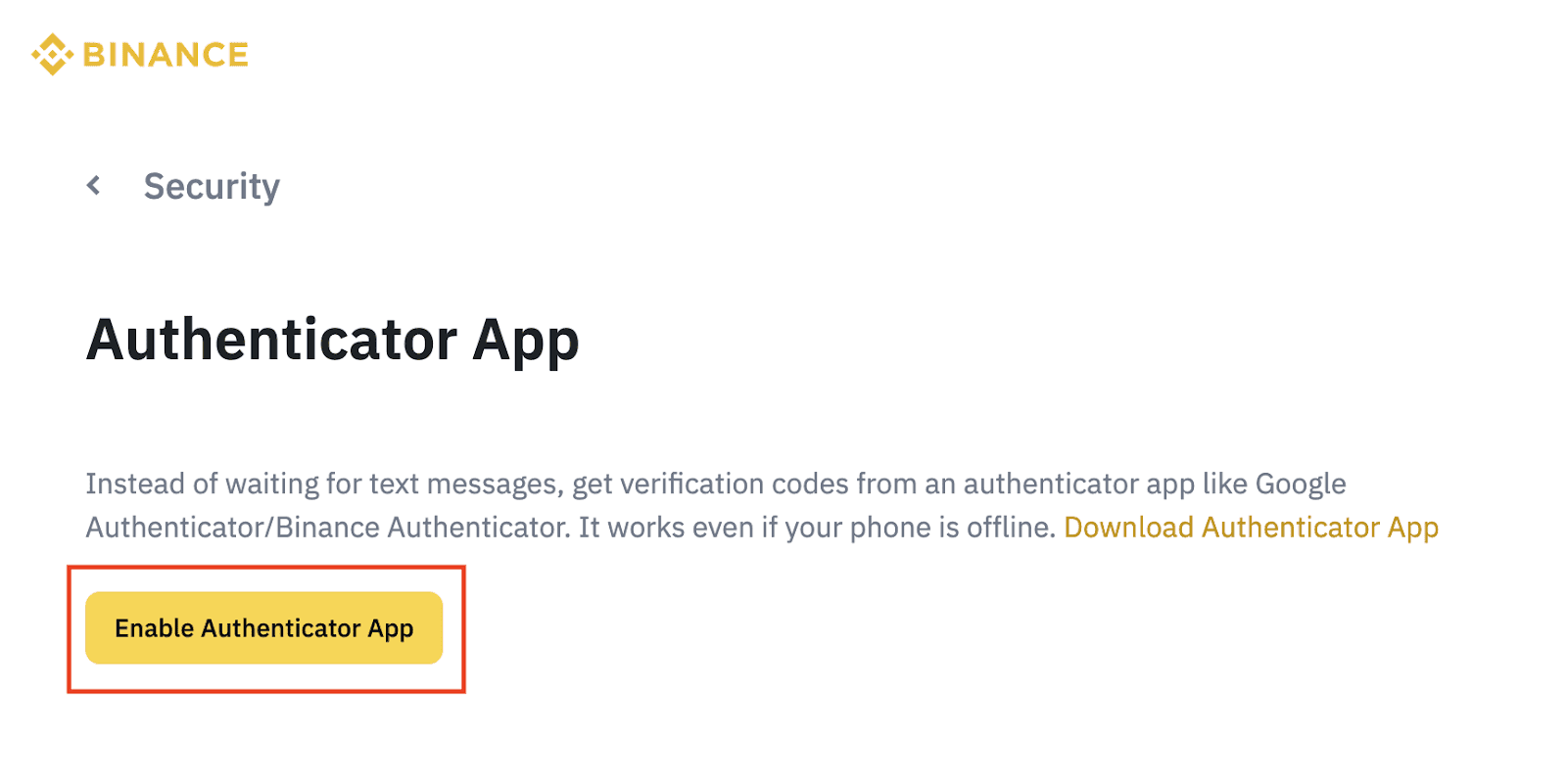
Click [Enable Authenticator App].
You’ll see a QR code and a setup key. Do not click [Next] before the Authenticator App setup is complete.
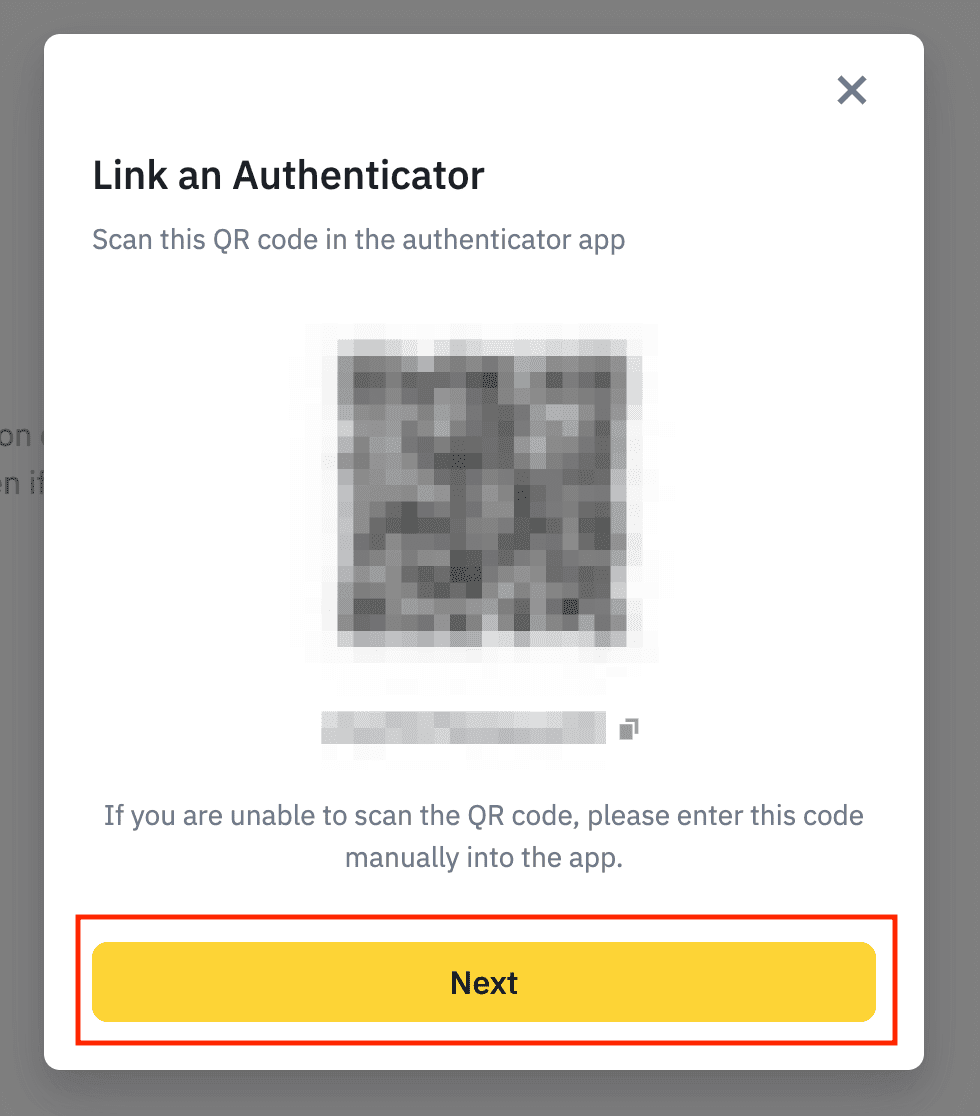
Open our Authenticator App, tap the '+' button at the top right of the screen, and then hold your device near the computer screen to scan the QR code.


After successfully scanning, a 6-digit code will appear in your App. Please note that this code refreshes every 30 seconds.

Return to the Binance webpage, click [Next].
Enter the 6-digit code displayed in step 6, and then click [Next].
You have successfully enabled 2FA for your Binance account.

Protect Your Account with Authenticator
Supports secure iCloud sync, Apple Watch access, and extremely simple & safe backup import.