
How to Enable 2FA on Google
Follow these steps to link dynamic verification codes to your account
Download and install the Authenticator App from your device's App Store.


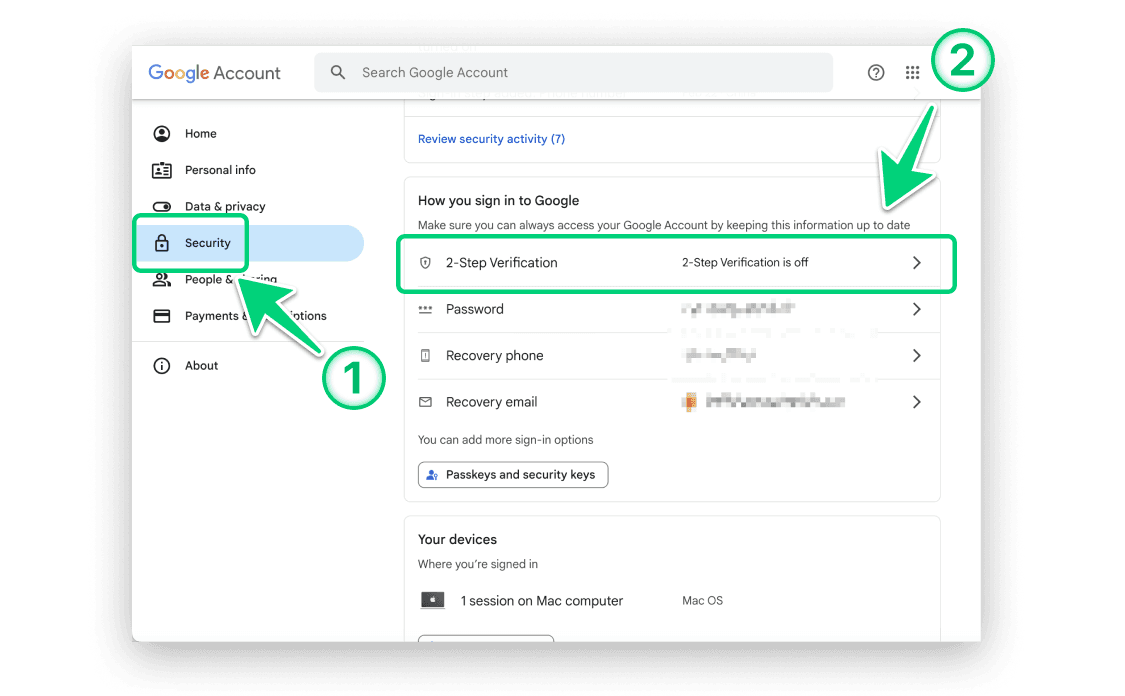
Log in to your account on the Google Account website, then select "Security".
a. If the "2-Step Verification" status on the right is "off", please click "2-Step Verification" and proceed to step 3.
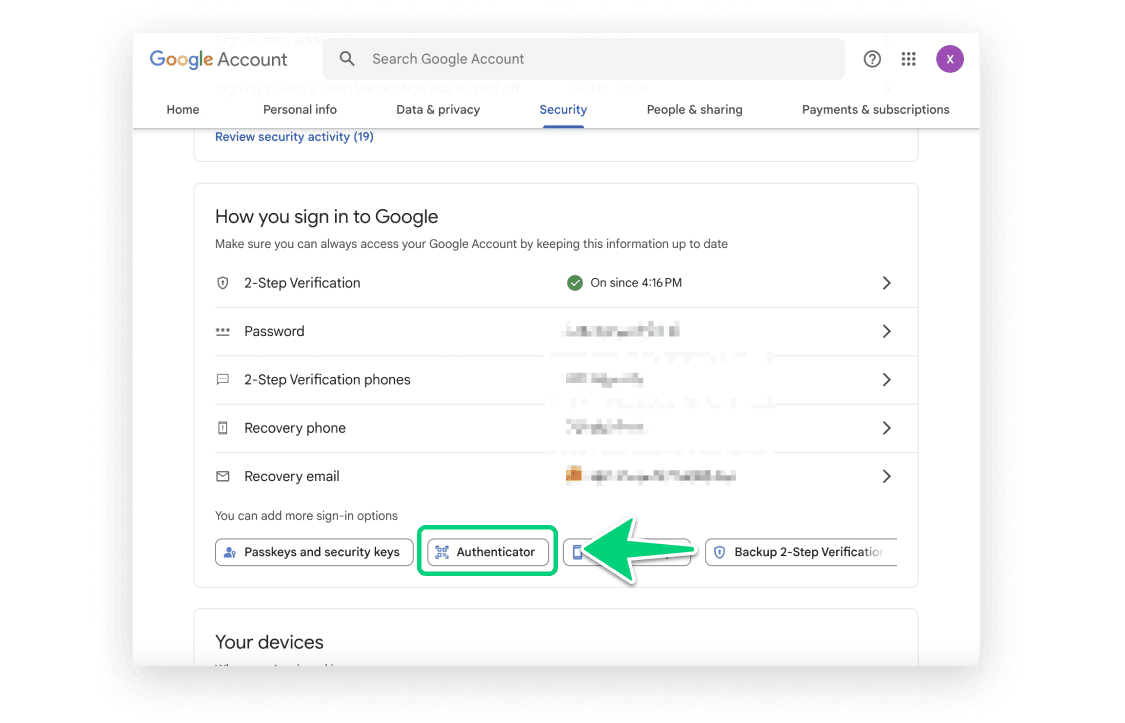
b. If the "2-Step Verification" status on the right is "on", it indicates that two-step verification is already enabled. In this case, click "Authenticator" to setup 2FA. Please refer to steps 7-14 for the next actions.
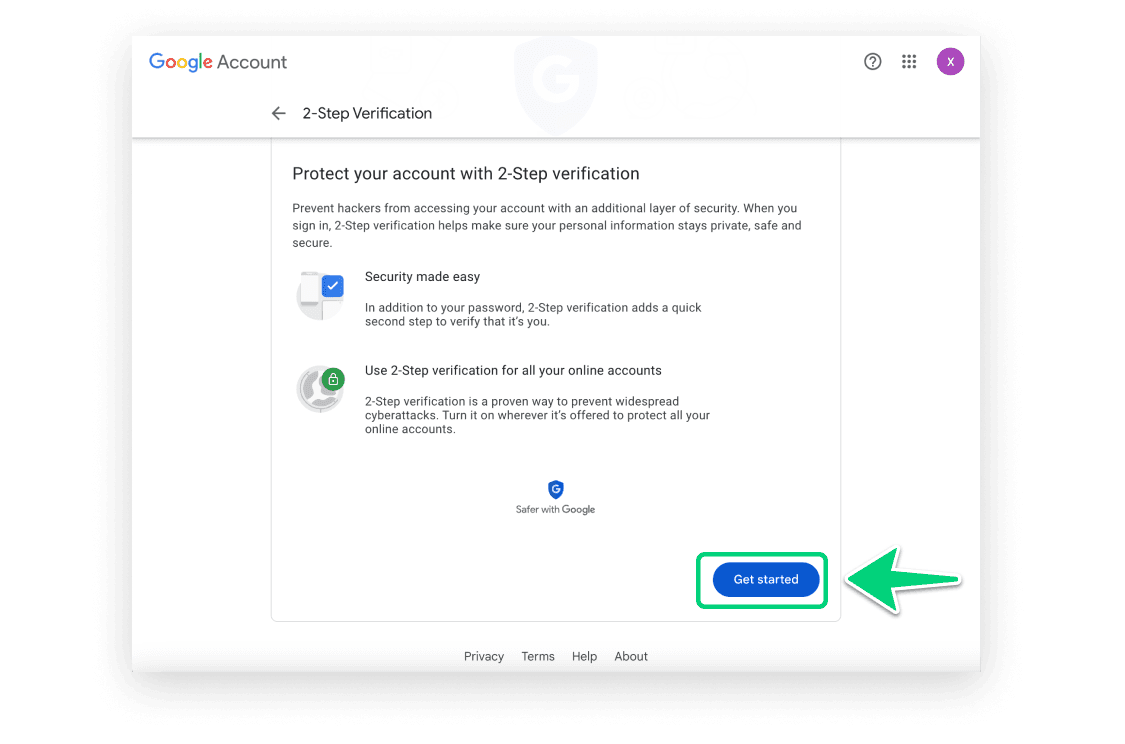
Click "Get started".
Verify your Google password, then click "Next".
Set up your phone number, then click "Next".
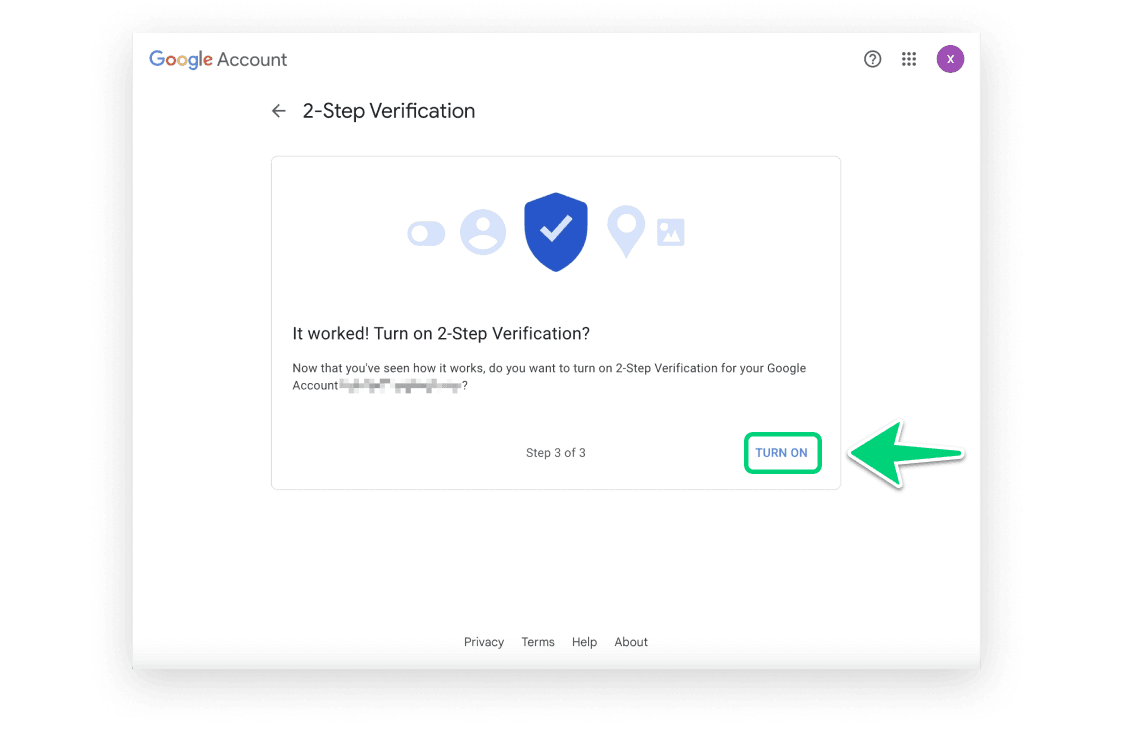
Click "TURN ON" to enable 2-Step Verification.
Select "Authenticator App".
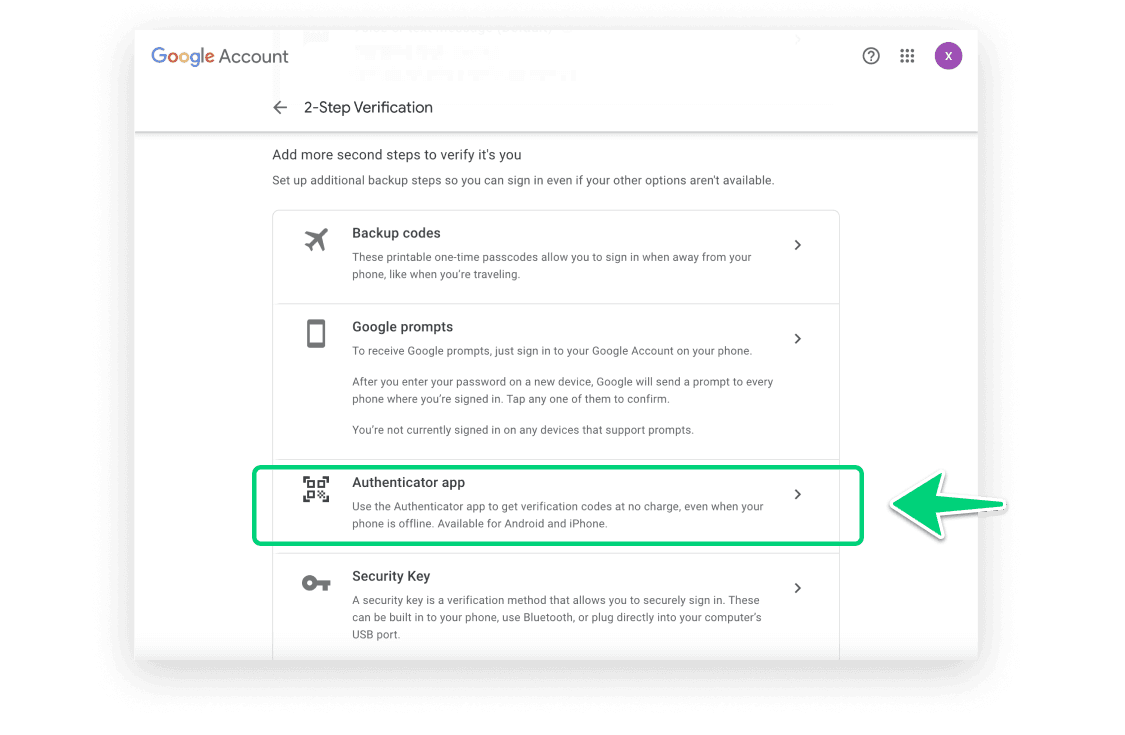
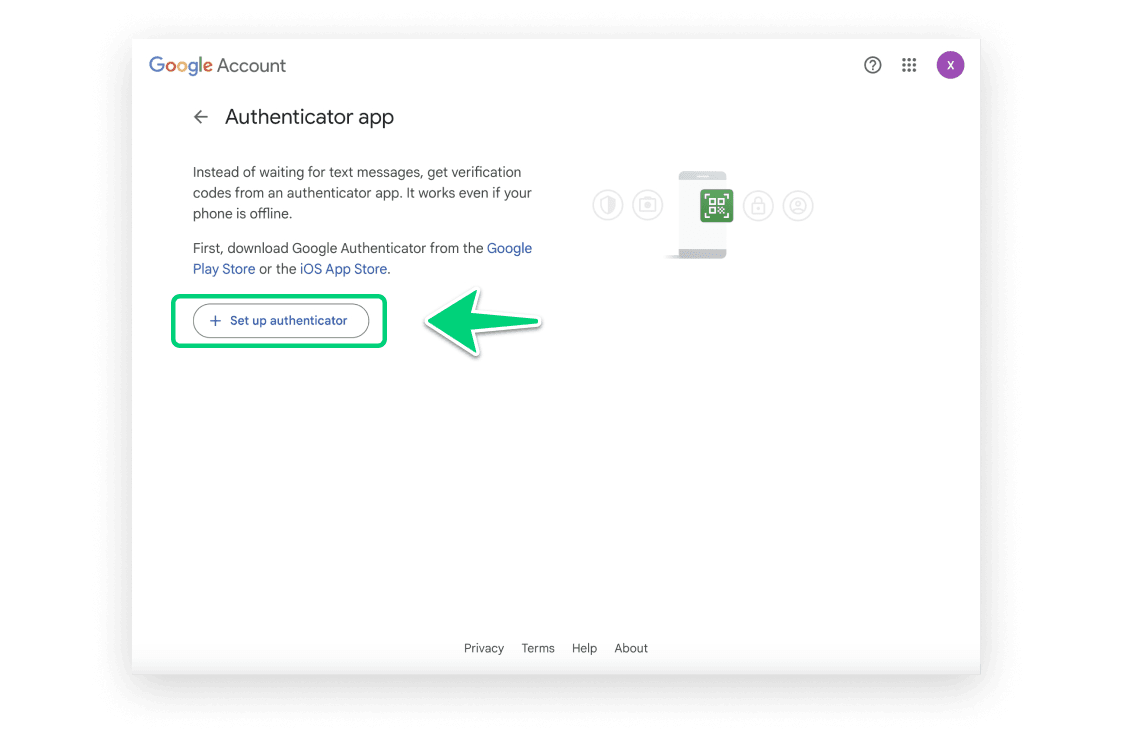
Click "Set up authenticator".
In this step, a QR code containing the secret key is displayed. Next, you need to use our Authenticator App to scan this QR code. Please keep this popup open to complete the setup.
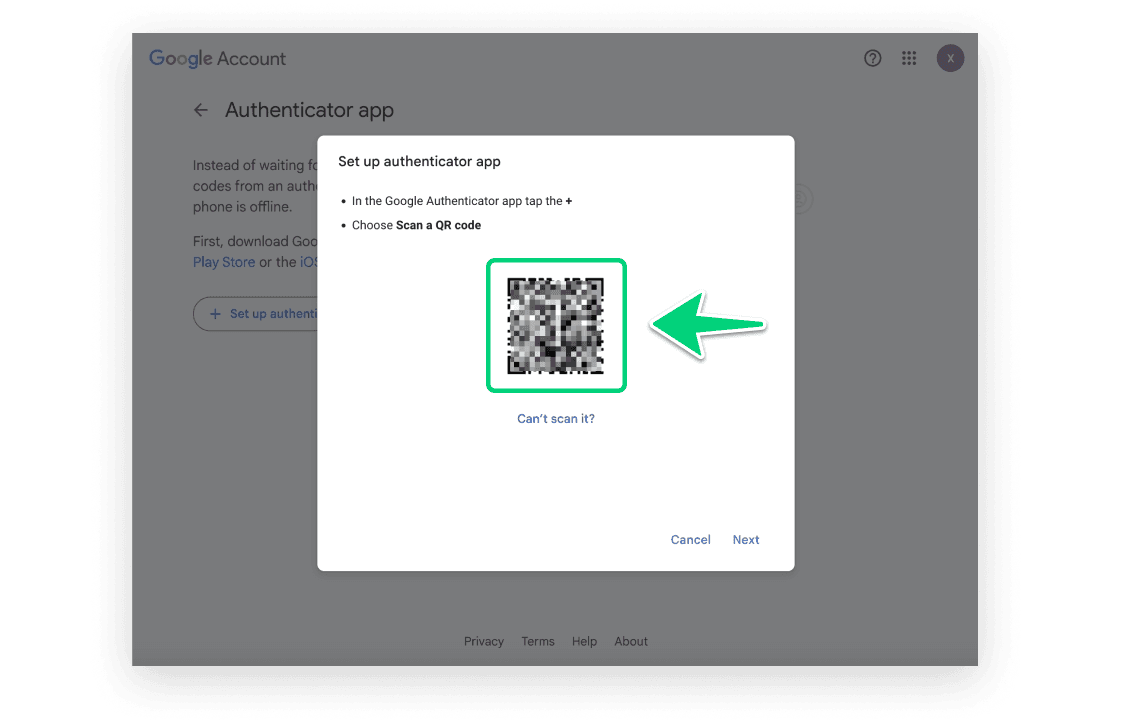
Open our Authenticator App, click the + button at the top-right of the screen, then hold your device near the computer screen to scan the QR code.


After successfully scanning, a 6-digit code will be shown on the screen. Please note that this code refreshes every 30 seconds.

Return to the Google webpage, click "Next".
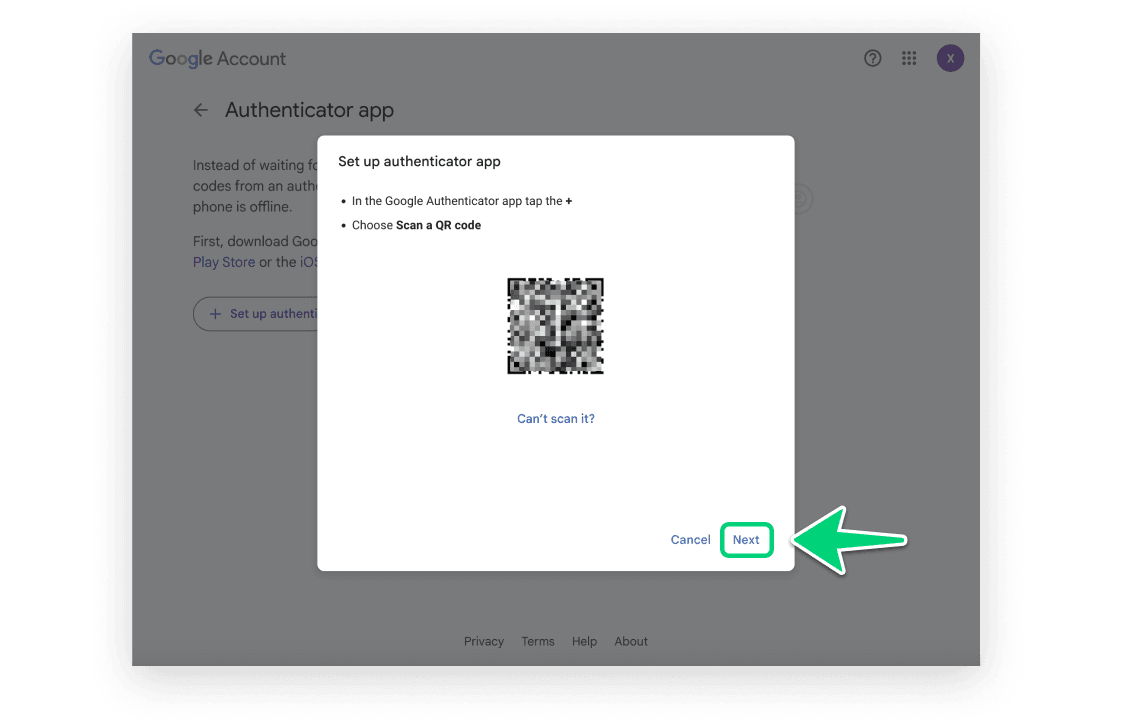
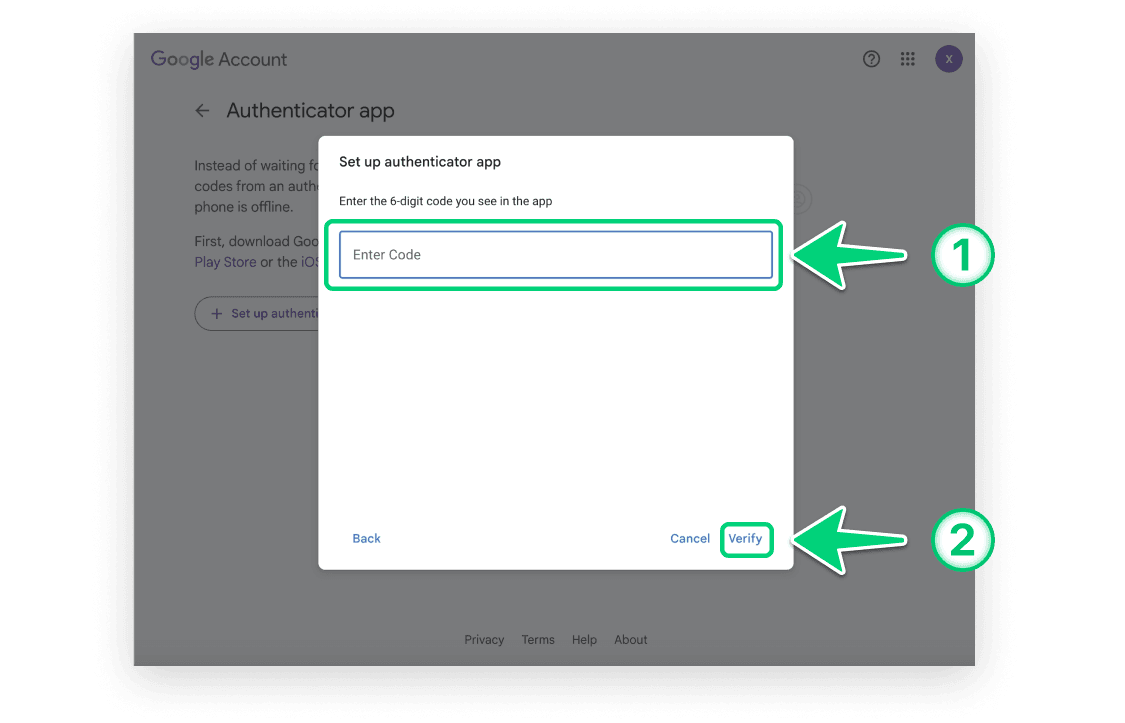
Enter the 6-digit code displayed in step 11, and then click "Verify".
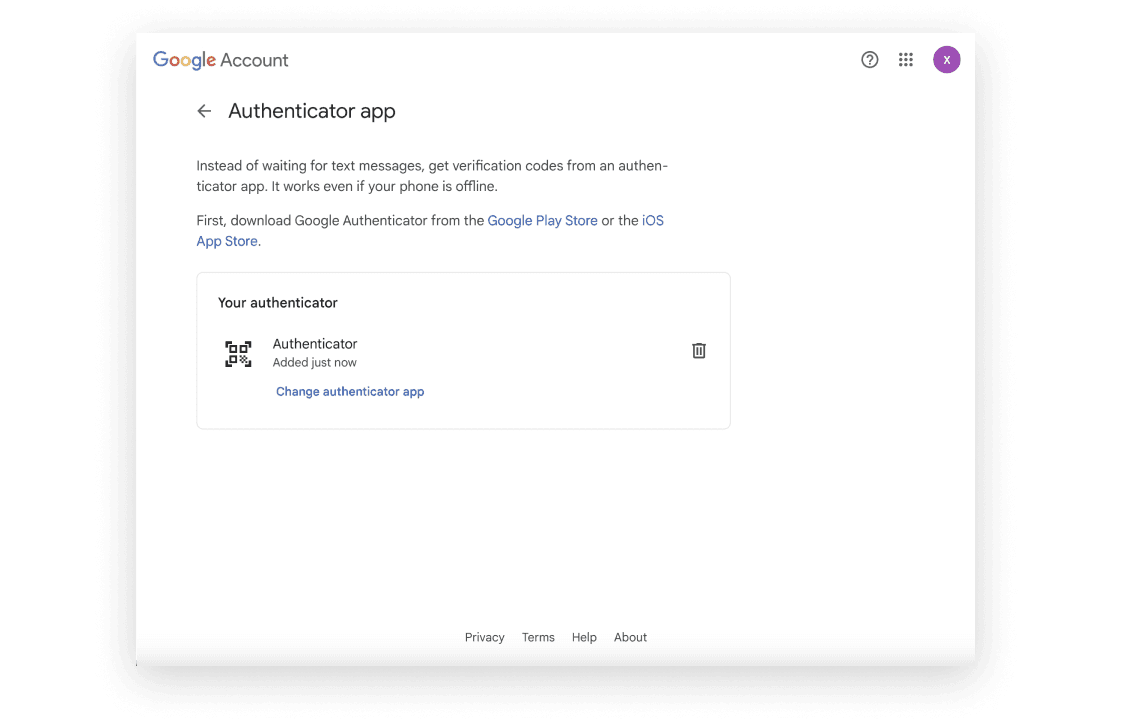
Now, you have successfully setup 2FA for your Google account. From now on, when you attempt to sign in to your Google account, you will need to use our Authenticator App.

Protect Your Accounts with Authenticator
Supports iCloud sync, Apple Watch display, and super easy text backups.