
如何在 Google (谷歌) 开启双重验证 (2FA)
按照以下步骤为您的 Google (谷歌) 账号绑定动态令牌
从您设备的 App Store 下载并安装 Authenticator App。


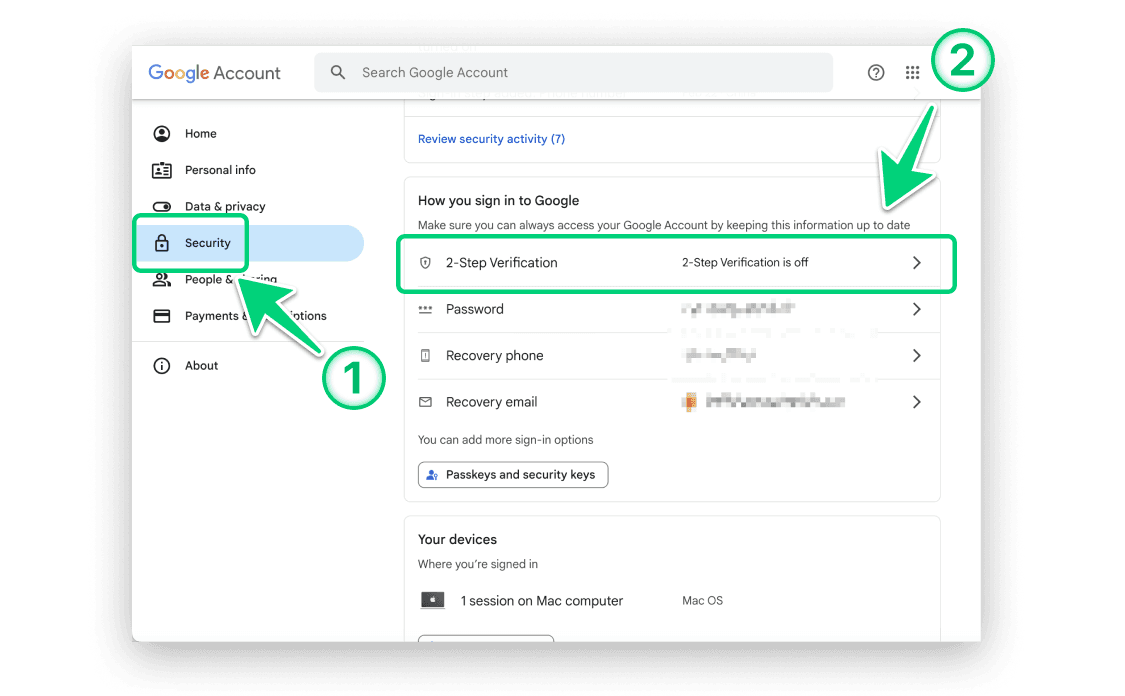
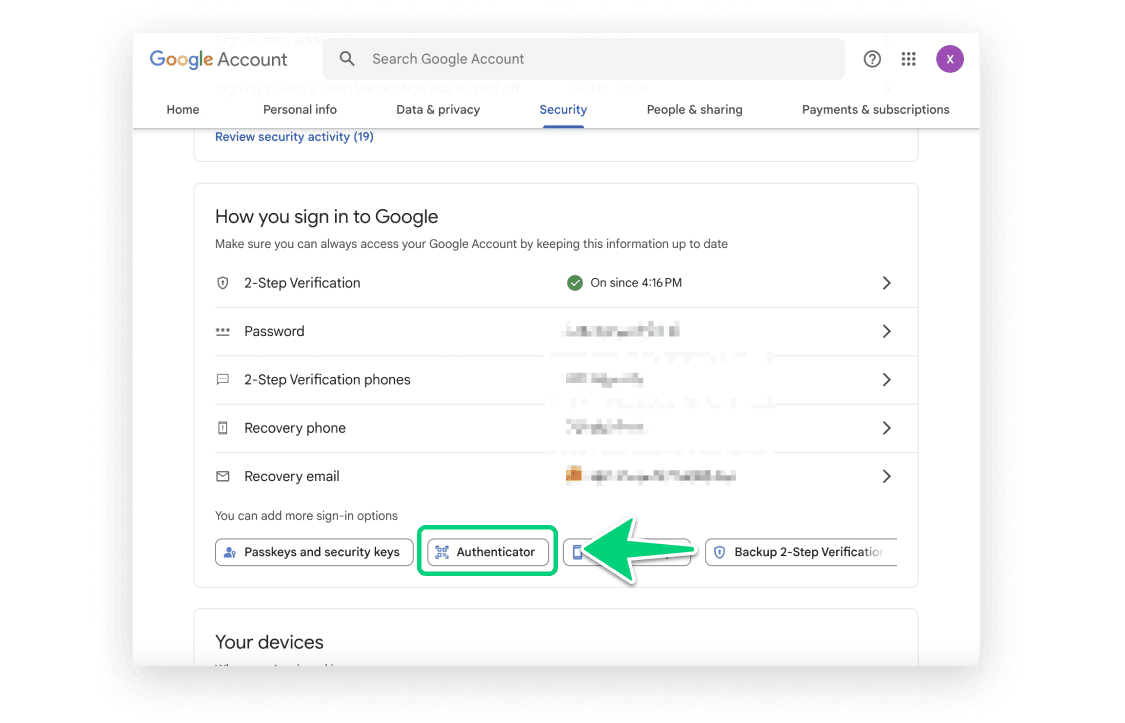
登录您的 Google 账号,进入“安全性”设置页面。
a. 如果右侧的“两步验证”状态为“关闭”,请点击“两步验证”并继续执行第 3 步。
b. 如果右侧的“两步验证”状态为“开启”,表示两步验证已启用。在这种情况下,点击“身份验证器”以设置 2FA。后续操作请参考第 7-14 步。
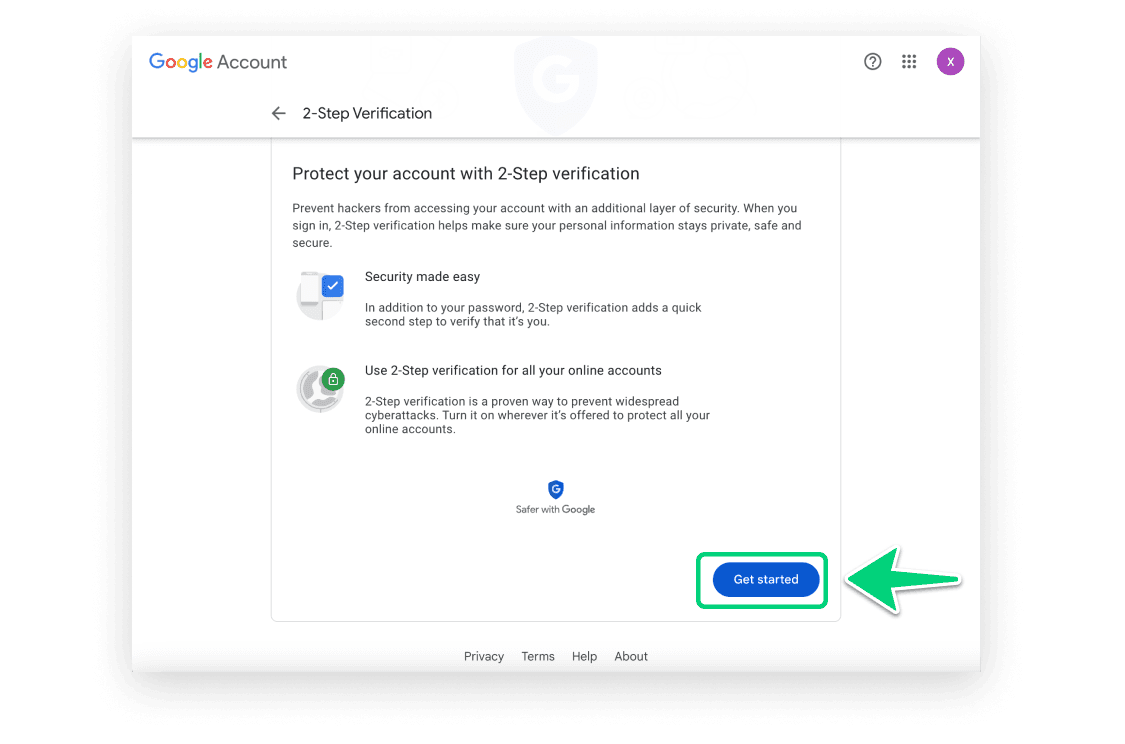
点击“开始”按钮。
输入并验证您的 Google 账号密码,然后点击“下一步”。
设置您的电话号码,然后点击“下一步”进行验证码验证。
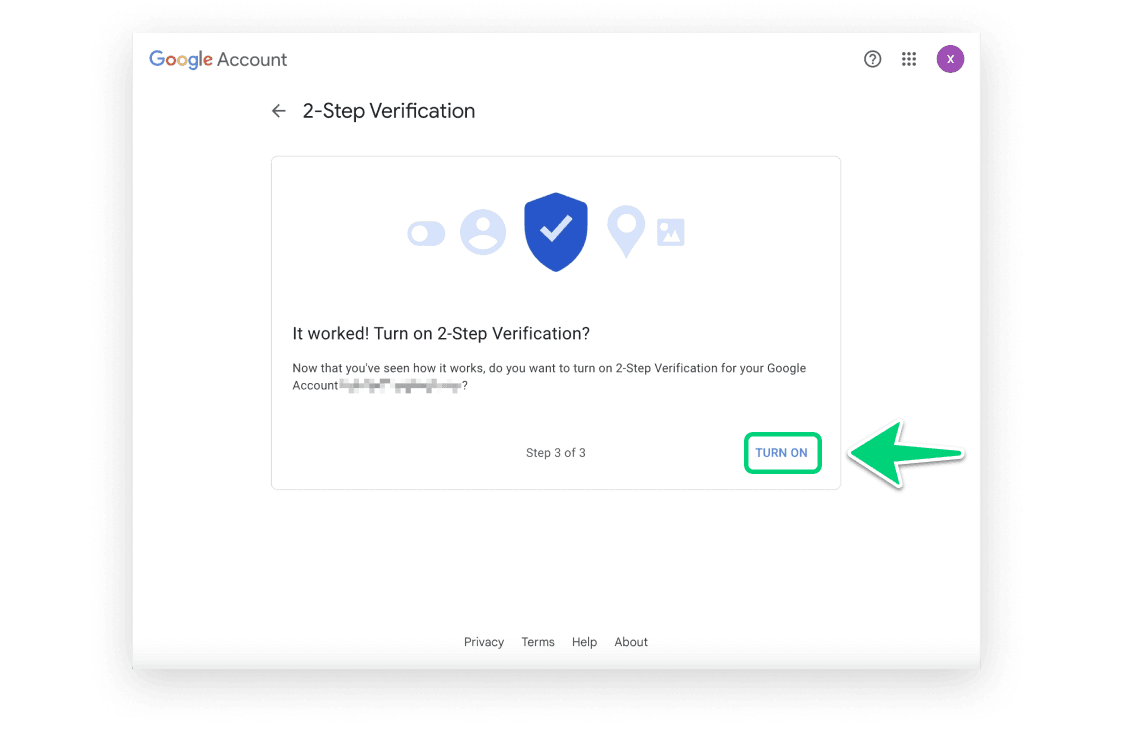
点击“启用”以正式开启两步验证。
在设置选项列表中,选择“身份验证器应用”。
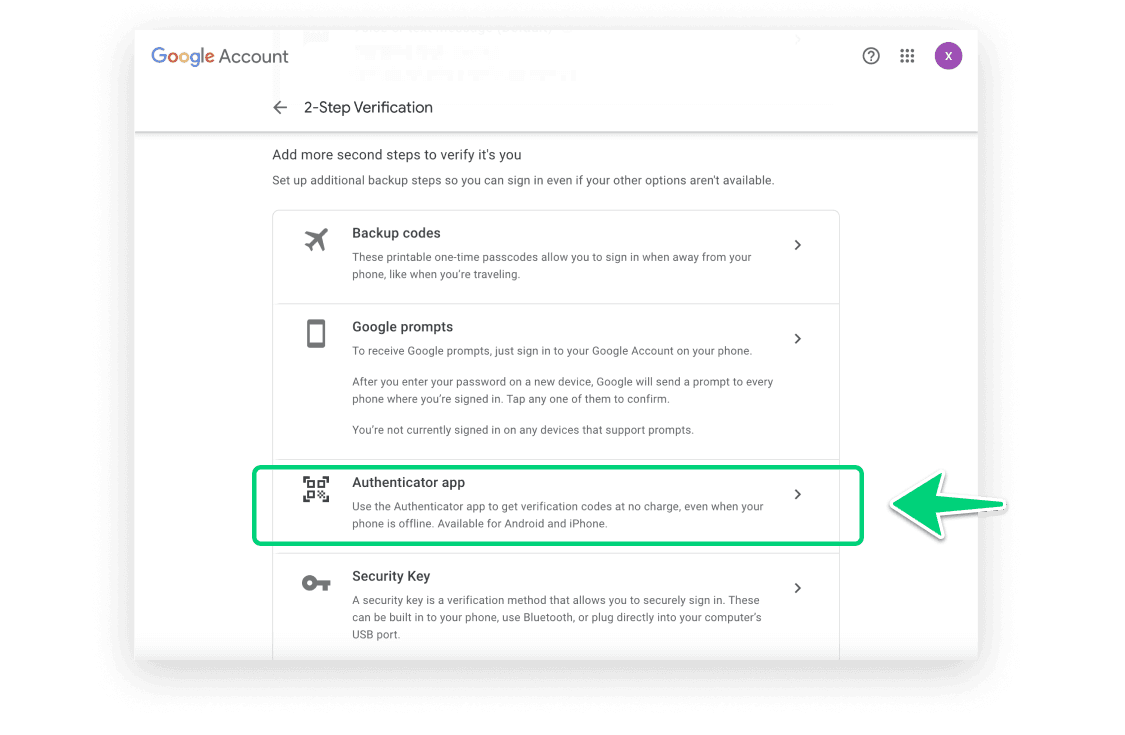
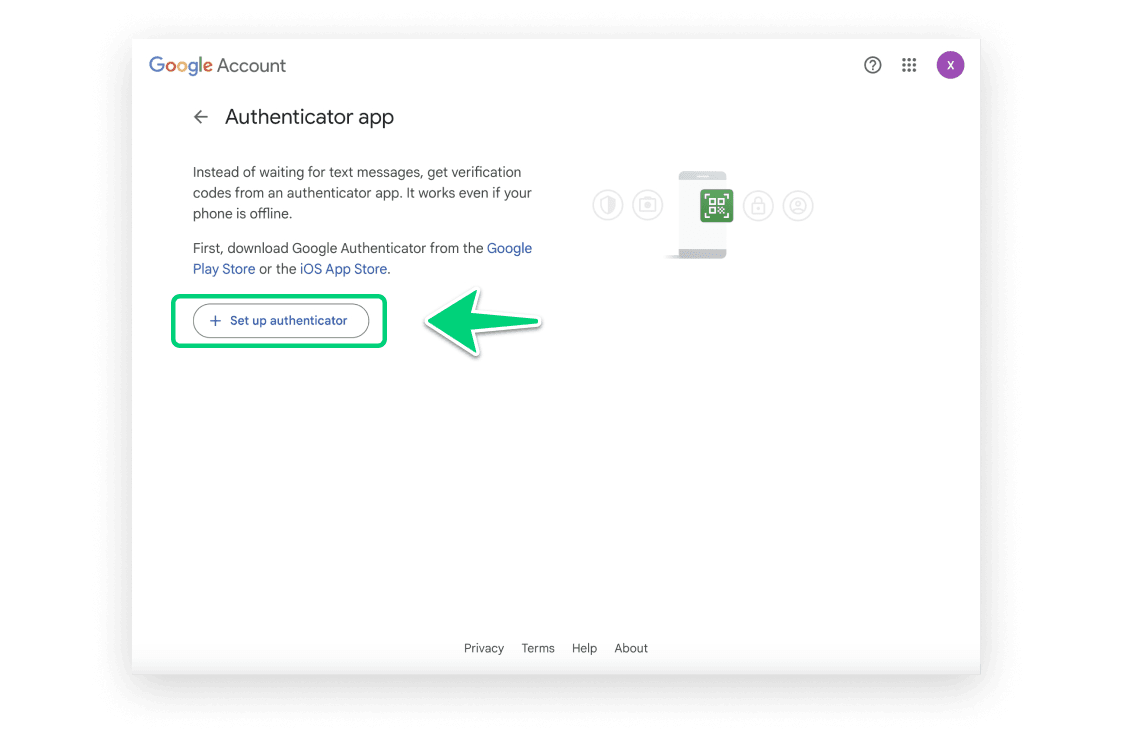
点击“设置身份验证器”以开始绑定流程。
在此步骤中,页面上将展示包含密钥的二维码。接下来,您需要使用 Authenticator App 扫描此二维码。请保持此弹窗打开。
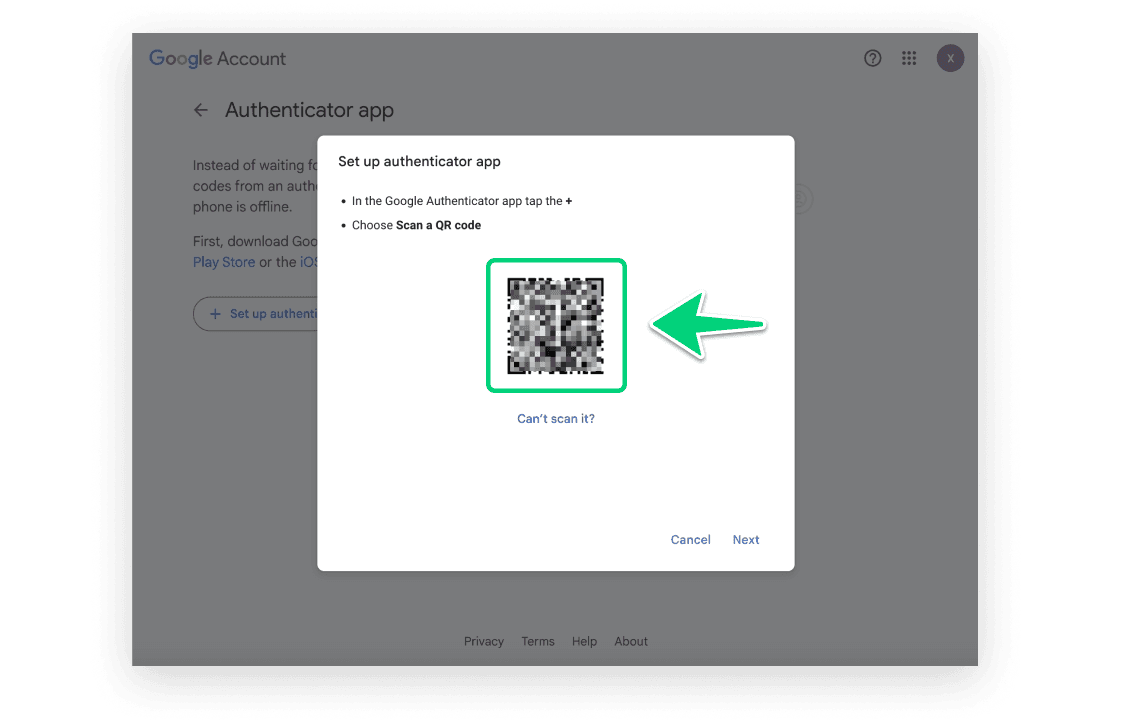
打开我们的 Authenticator App,点击屏幕右上角的 + 按钮,然后将您的设备靠近电脑屏幕扫描网页上的二维码。


扫描成功后,您的 App 中将出现一个 6 位数字的动态码。请注意,这个动态码每 30 秒会自动重新整理一次。

返回到 Google 的网页上,点击“下一步”按钮。
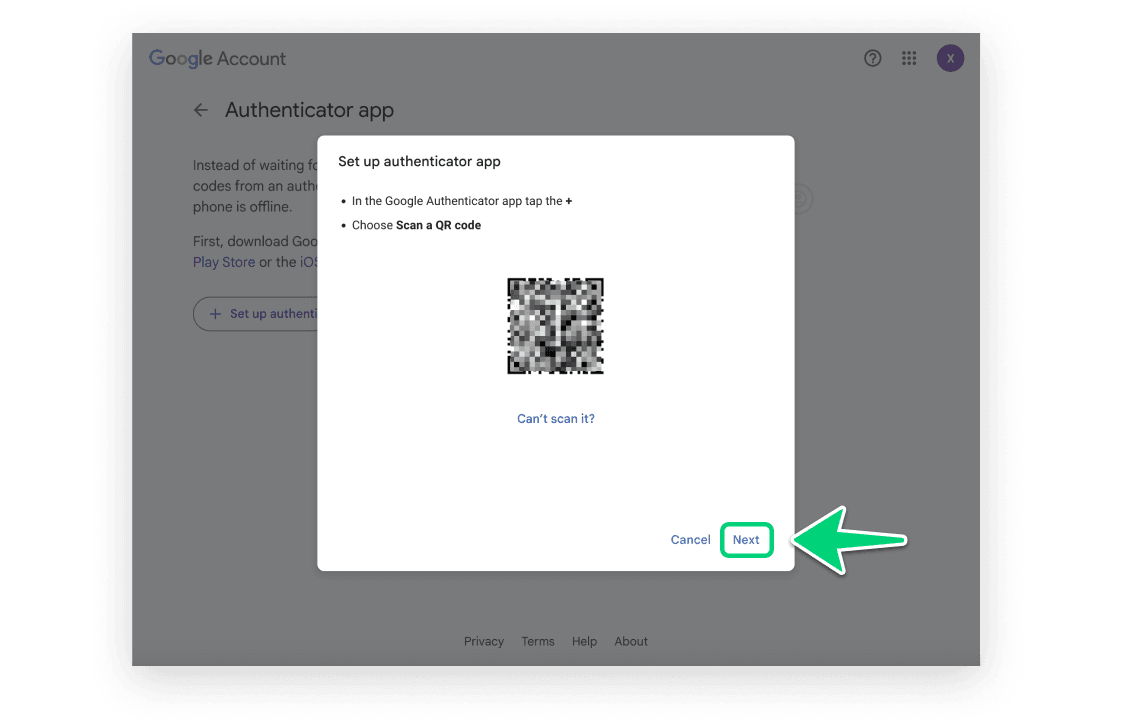
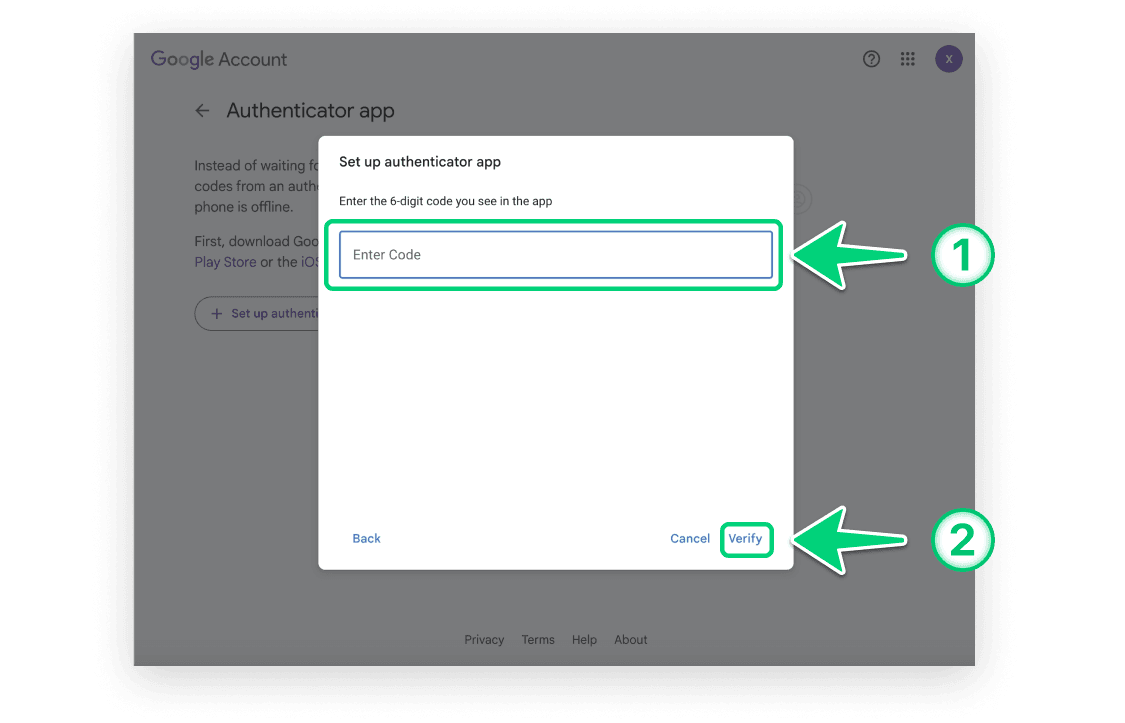
输入 App 在第 11 步生成的 6 位数字验证码,然后点击“验证”。
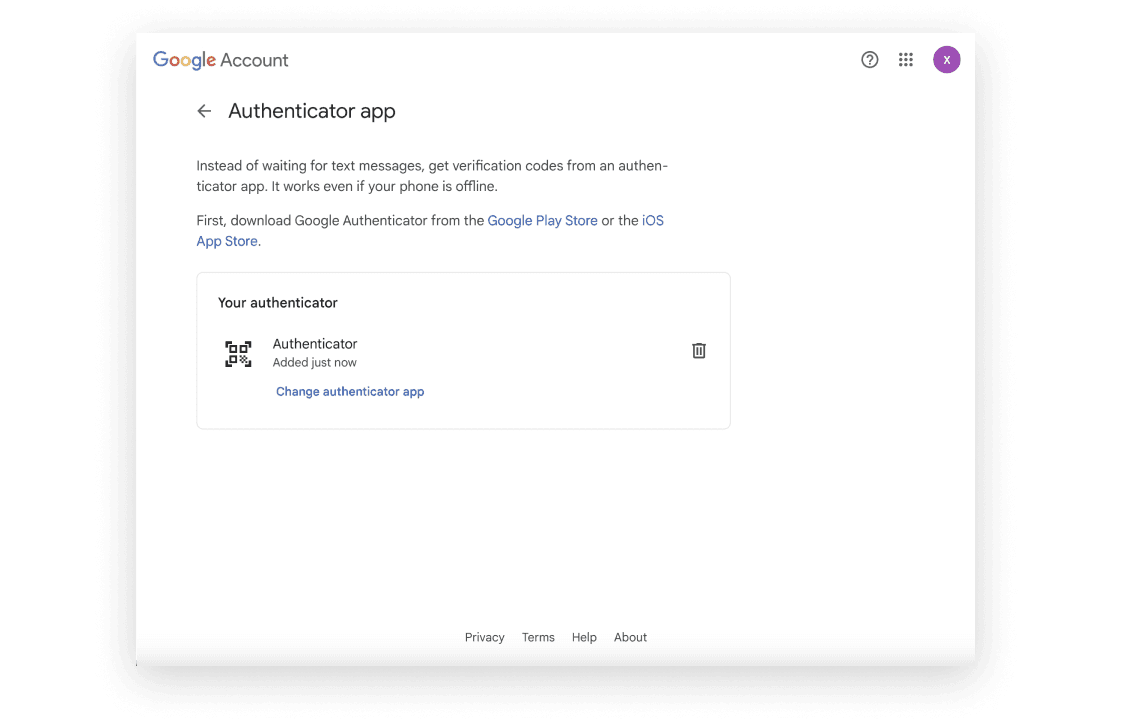
现在,您已成功为您的 Google 账号关联了 Authenticator。后续在尝试登录此 Google 账号时,您都将需要使用我们的 Authenticator App 提供动态验证码。

使用 Authenticator 保护您的账号
支持 iCloud 自动同步、Apple Watch 随时查看,支持极其简洁安全的备份导入。