Official Apple Refund Procedure & Guidelines
Under the Apple Media Services Terms and Conditions and the Apple Developer Program License Agreement, all transactions, billing, subscriptions, and refund adjudications for iOS and macOS applications are processed and governed exclusively by Apple as the merchant of record.
In adherence to strict zero-knowledge encryption and privacy standards, our application and developers do not collect, store, or access your credit cards, Apple Pay credentials, or payment account data. Consequently, app developers lack technical access and legal authority to issue direct refunds from our backend. Refund requests must be initiated directly through Apple's official channels by the purchasing account holder.
1. Revocation of Pro Entitlement: When Apple evaluates and approves your refund, the underlying purchase contract is terminated and Apple revokes the transaction receipt. Upon your next app launch or network sync, your account will automatically revert to the standard free tier across all synced devices.
2. Zero Data Loss Guarantee No Local Data Deleted: A refund will NEVER delete or wipe any of your existing 2FA tokens or stored passwords! All previously saved accounts remain 100% accessible locally, and verification passcodes continue generating offline as usual. You are only prompted to upgrade if you need to add new accounts beyond the free tier limit (1 account) or use cloud sync/export services.
Method 1: Request via Apple's "Report a Problem" Website (Recommended)
This is Apple's recommended, fastest self-service pathway, accessible from any web browser on iPhone, Mac, iPad, or PC.
Go to Apple Report a Problem (reportaproblem.apple.com) ↗
1Sign In with Your Apple Account
Open reportaproblem.apple.com in your browser and sign in with the Apple ID and password used when making the purchase.
2Select "Request a refund" & Specify Reason
Under the 【I'd like to...】 dropdown menu at the top, select 【Request a refund】.
In the second dropdown menu, select your reason (e.g., "I didn't mean to buy this", "A child purchased without permission", or "Purchase doesn't work as expected"), then click 【Next】.
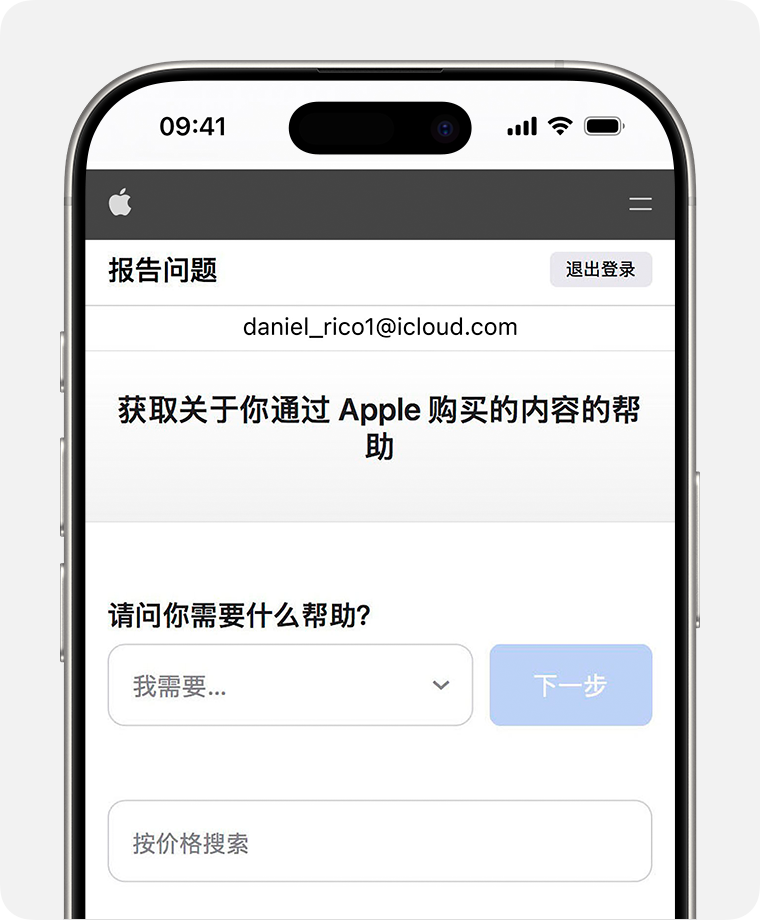
3Select Authenticator Order & Submit
The system will list your recent purchases and subscriptions. Select the Authenticator Pro transaction (weekly, yearly, or lifetime), and click 【Submit】.
Method 2: Request via iPhone / iPad Settings
You can also submit your claim directly through iOS system settings:
1Navigate to Purchase History
Open 【Settings】 → tap your 【Name / Apple Account】 at the top → tap 【Media & Purchases】 → select 【View Account】 → scroll down and tap 【Purchase History】.
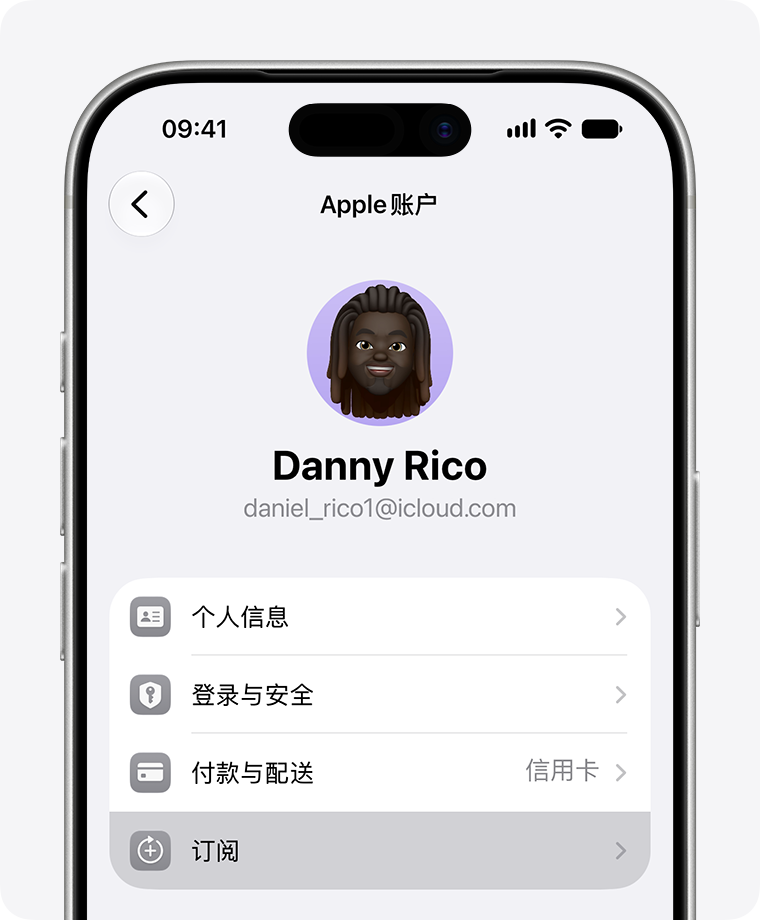
2Report a Problem and Submit
Locate the Authenticator order, tap the item to view details, then tap 【Report a Problem】 to proceed to Apple's claim submission portal.
Method 3: Via Apple Official Email Receipt
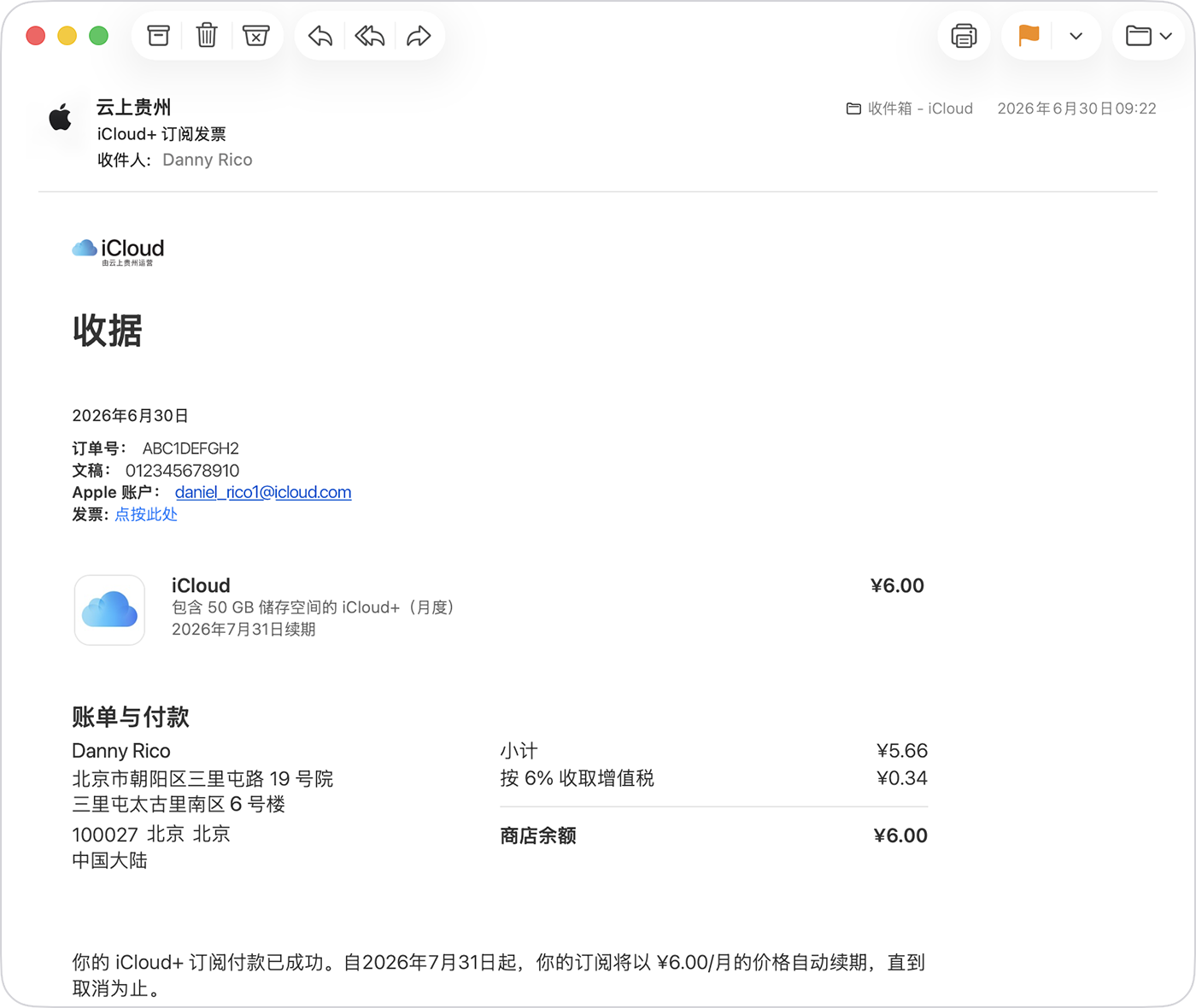
Apple automatically delivers an itemized receipt to your Apple ID inbox for every App Store transaction (titled "Your receipt from Apple").
Open the receipt email, locate the Authenticator purchase entry, tap 【Report a Problem】, and submit your request directly.
Will my existing 2FA tokens and passwords be lost after a refund?
Absolutely not! Authenticator is built with a local-first zero-knowledge architecture. All 2FA tokens and passwords you created prior to the refund remain safely stored inside your device's protected sandbox. Even after reverting to the free tier, your existing accounts continue functioning normally and generating offline OTP codes. You will only encounter upgrade gates if you want to add new accounts beyond the free tier (1 account) or use cloud sync.
How long does the review take? Who decides?
Refund determinations are made solely and independently by Apple in accordance with its review guidelines. Developers have no authority to approve, deny, or override Apple's decisions. Apple typically provides a decision within 24 to 48 hours. You may check the status anytime by signing into reportaproblem.apple.com and clicking 【Check Status of Claims】.
What should I do if Apple initially declines my refund request?
If the automated system rejects your initial claim, you have legitimate appeal pathways:
- Request a Review Online: On reportaproblem.apple.com under "Check Status of Claims", find the rejected order and click 【Request a Review】 to submit detailed clarifying context;
- Call Apple Customer Support: Call Apple Support (US: 1-800-APL-CARE; UK: 0800 107 6285) and speak directly with a billing advisor, who possesses greater human discretionary authority.
When and where will the funds be returned?
Once approved by Apple, refunds are returned to the original payment method based on standard banking settlement times:
- Apple Account Balance: Usually within 48 hours;
- Credit / Debit cards / Apple Pay: Up to 30 days depending on your bank's billing cycle.
For recurring subscriptions, will I be billed again?
A refund only covers previously billed charges. To ensure future billing cycles do not recur, be sure to cancel auto-renewal: navigate to 【Settings】→【Apple Account】→【Subscriptions】 and confirm Authenticator shows as canceled.
Can I tap "Restore Purchases" to get Pro back after a refund?
No. Under Apple StoreKit 2 receipt validation, once an order is refunded, the cryptographic receipt is revoked. The app cannot and will not restore refunded entitlements. You may re-purchase Pro at any time within the app should you decide to upgrade again.
Why can't I find the order in the list?
Ensure you are signed in with the same Apple ID used during purchase. If you participate in Family Sharing, the purchase may appear under the Family Organizer's billing statement. Also, if the transaction is still pending settlement with your bank, wait until it fully clears.
Need Technical Assistance?
For app usage support, feature feedback, or security queries, contact our team: service@xiayuyue.com